> For the complete documentation index, see [llms.txt](https://docs.dexlab.space/llms.txt). Markdown versions of documentation pages are available by appending `.md` to page URLs; this page is available as [Markdown](https://docs.dexlab.space/products/supertools-for-xpla/cw20-token-creation/instantiate-minting.md).
# 1️⃣ Instantiate (Minting)
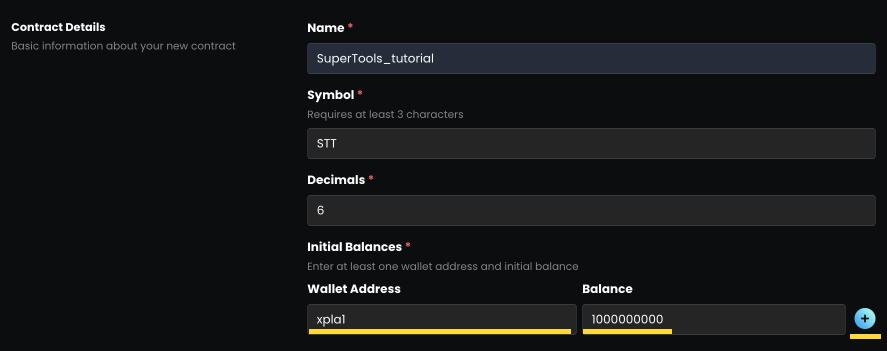
## Contract Details
In order to create a CW20 token, a CW20 contract must be instantiated.
* **Name:** the full name of your token.
* **Symbol (Ticker)**: the shortening of your CW20 token name.
* **Decimals:** denote how much divisible your token is. If your token has 6 decimals, it means addresses can have as little as 0.000001 of your token.
* **Initial Balance:** To avoid creating a token with no quantity in the blockchain, you need to specify the wallet address and quantity for the tokens to be issued. If you're issuing a token for personal use, just enter your Keplr wallet address and the maximum issued quantity (Like the above image). Or, you can divide the maximum issued quantity for the team and investor, according to the tokenomics, and enter the wallet address and allocation quantity for each. Click the '+' icon to add more wallet addresses.
## Minting Details
* **Minter Address:** the address that has access to mint new tokens. In this case, I wrote my Keplr wallet address.
* **Cap:** the maximum amount of tokens that you want to issue.
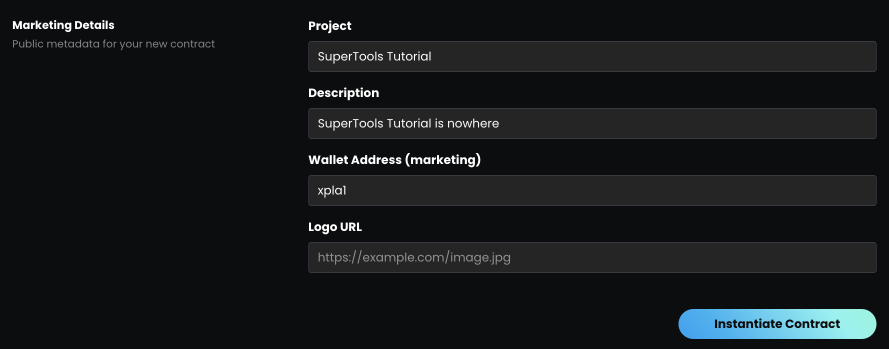
## Marketing Details
* **Project**: the name shown on the marketing details.
* **Description:** where you can store detailed project information about your token.
* **Wallet Address**: will be shown as the marketing address of your token.
* **Logo URL**: any URL that contains an image, your token will have that URL information for marketing and branding purposes.
* Click the 'Instantiate Contract' button and check the pop-up wallet window to proceed.
You may see the notice on the website above if the instantiate went successfully.
## Add Token to your Wallet
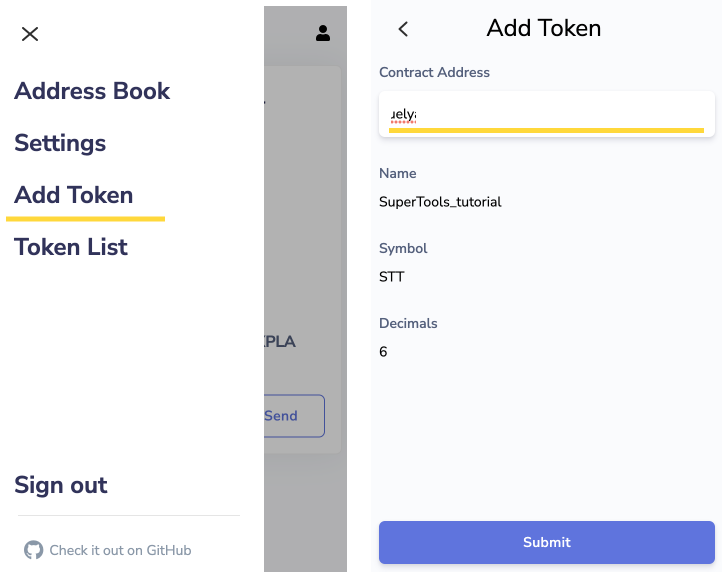
Click 'Add Token' on your Keplr wallet.
Type down your CW20 token contract address and click 'Submit.' [How to Get My CW20 Token Contract Address](/products/supertools-for-xpla/cw20-token-creation/how-to-get-my-cw20-token-contract-address.md)
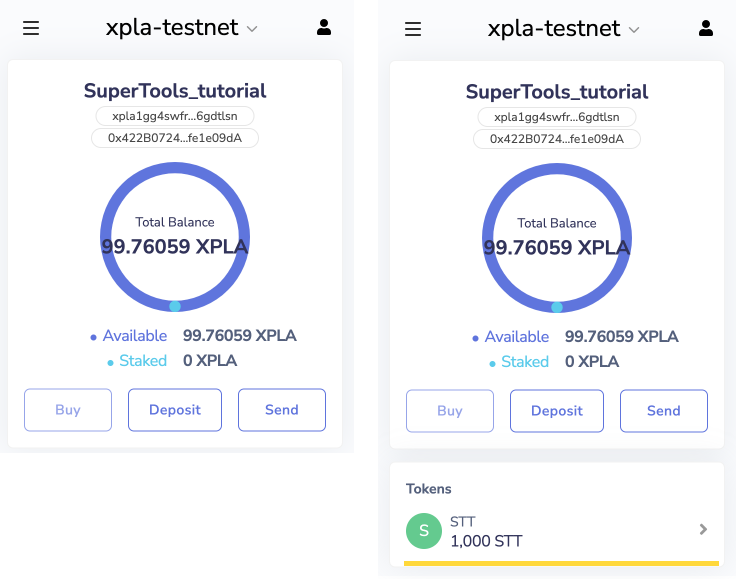
You can see your token added to Keplr wallet now.
---
# Agent Instructions
This documentation is published with GitBook. GitBook is the documentation platform designed so that both humans and AI agents can read, navigate, and reason over technical content effectively. Learn more at gitbook.com.
## Querying This Documentation
If you need additional information that is not directly available in this page, you can query the documentation by asking a question.
Perform an HTTP GET request on the following URL with the `ask` and `goal` query parameters:
```
GET https://docs.dexlab.space/products/supertools-for-xpla/cw20-token-creation/instantiate-minting.md?ask=&goal=
```
`ask` is the immediate question: it should be specific, self-contained, and written in natural language.
`goal` is what the user is ultimately trying to achieve, the reason they need the answer. Sharing it helps GitBook give you a better, more relevant answer. A goal is most helpful when it describes the outcome the user wants rather than restating the question. For example, with `ask=how do I create an API token`, a goal like `automate deployments from our CI pipeline` lets GitBook tailor the answer to that use case.
The response will contain a direct answer to the question and relevant excerpts and sources from the documentation.
Use this mechanism when the answer is not explicitly present in the current page, you need clarification or additional context, or you want to retrieve related documentation sections.